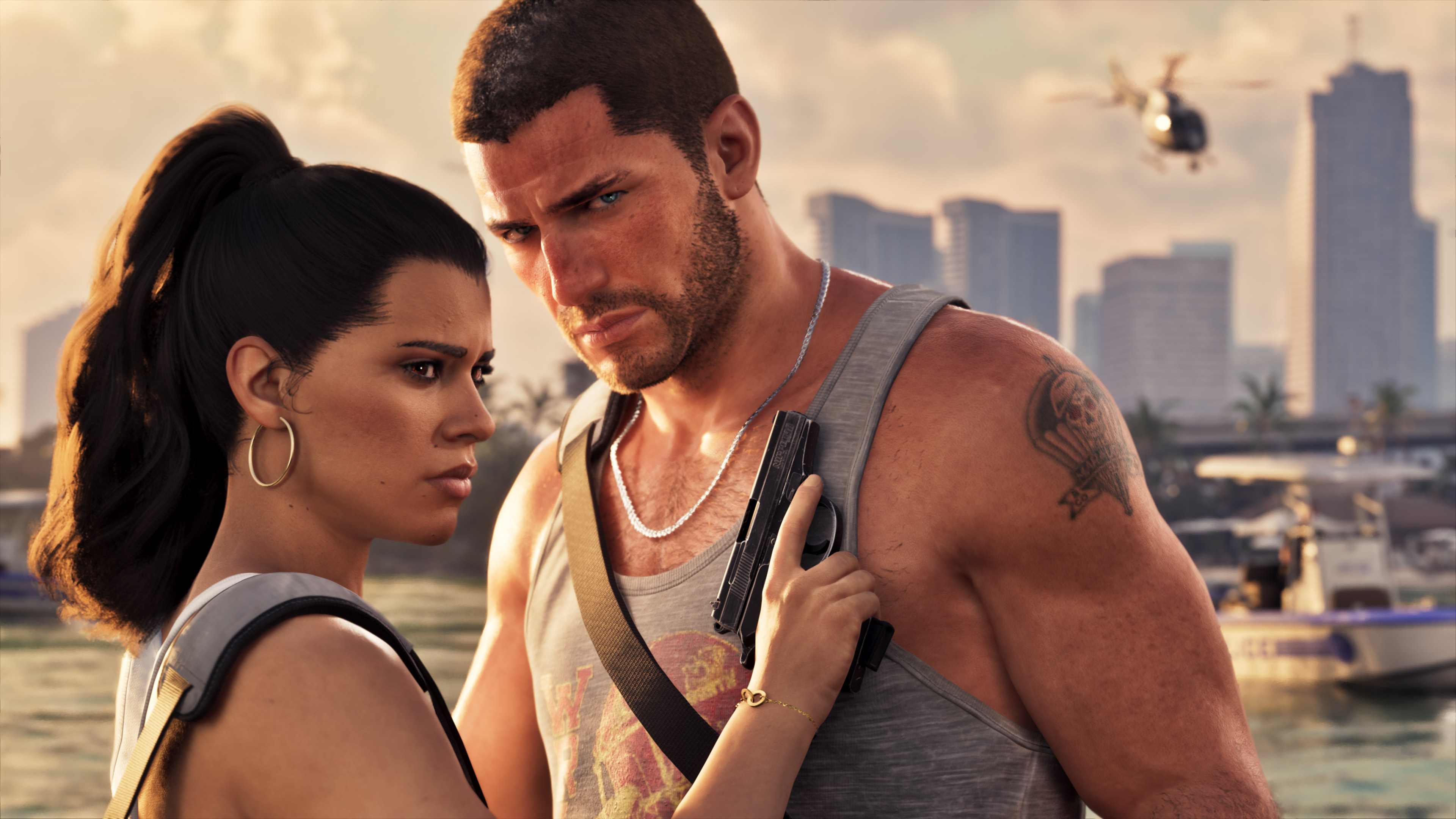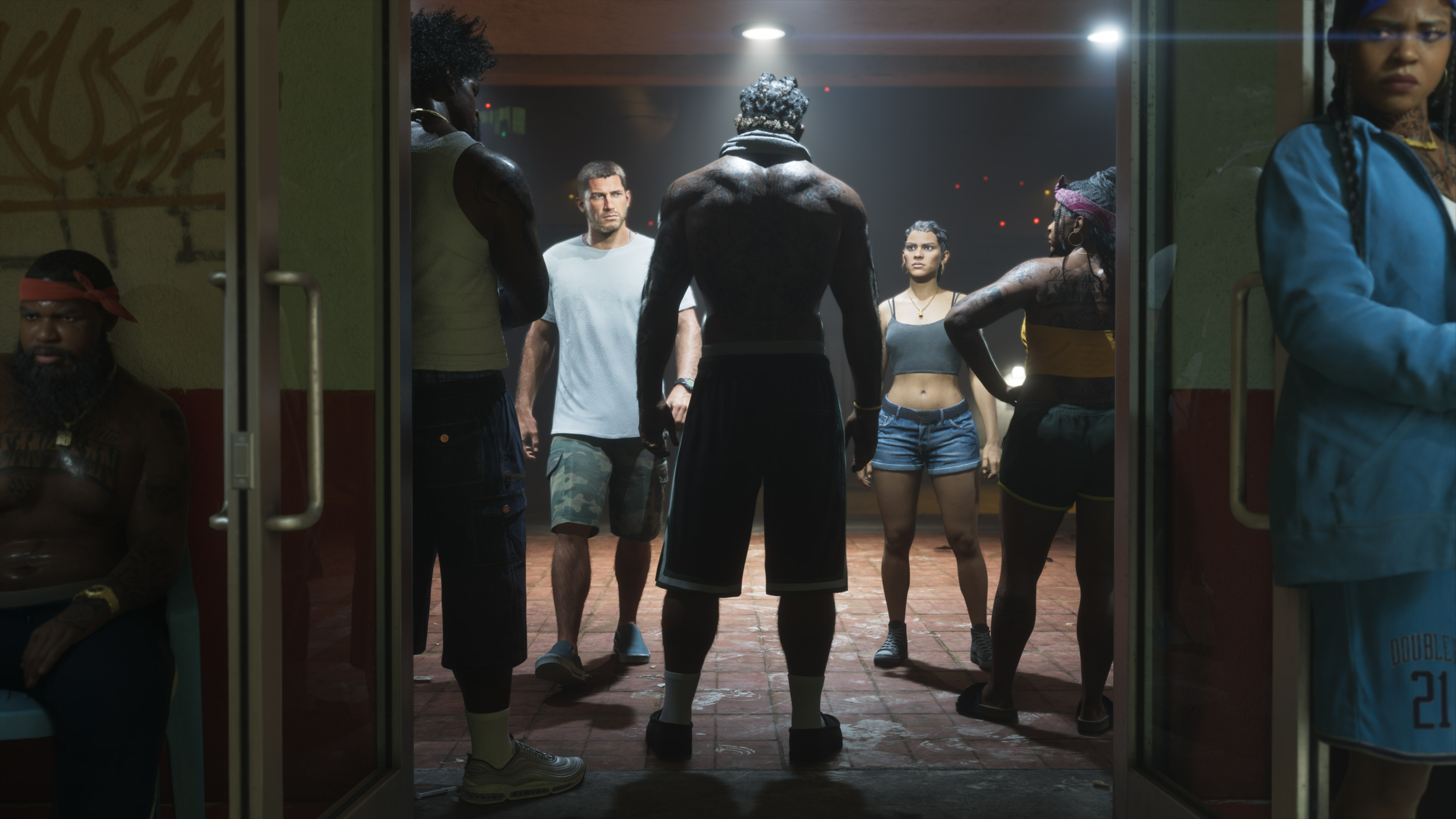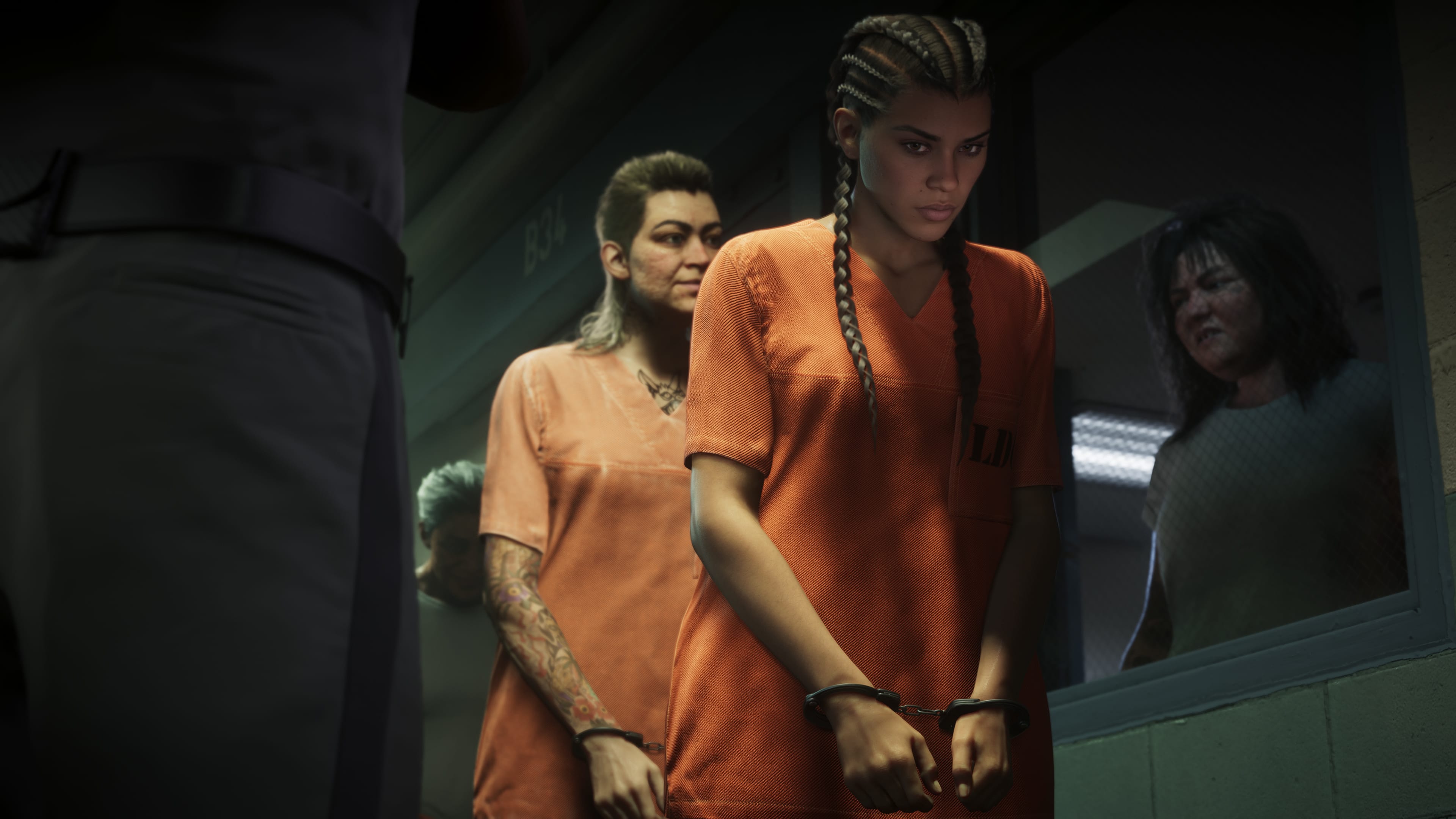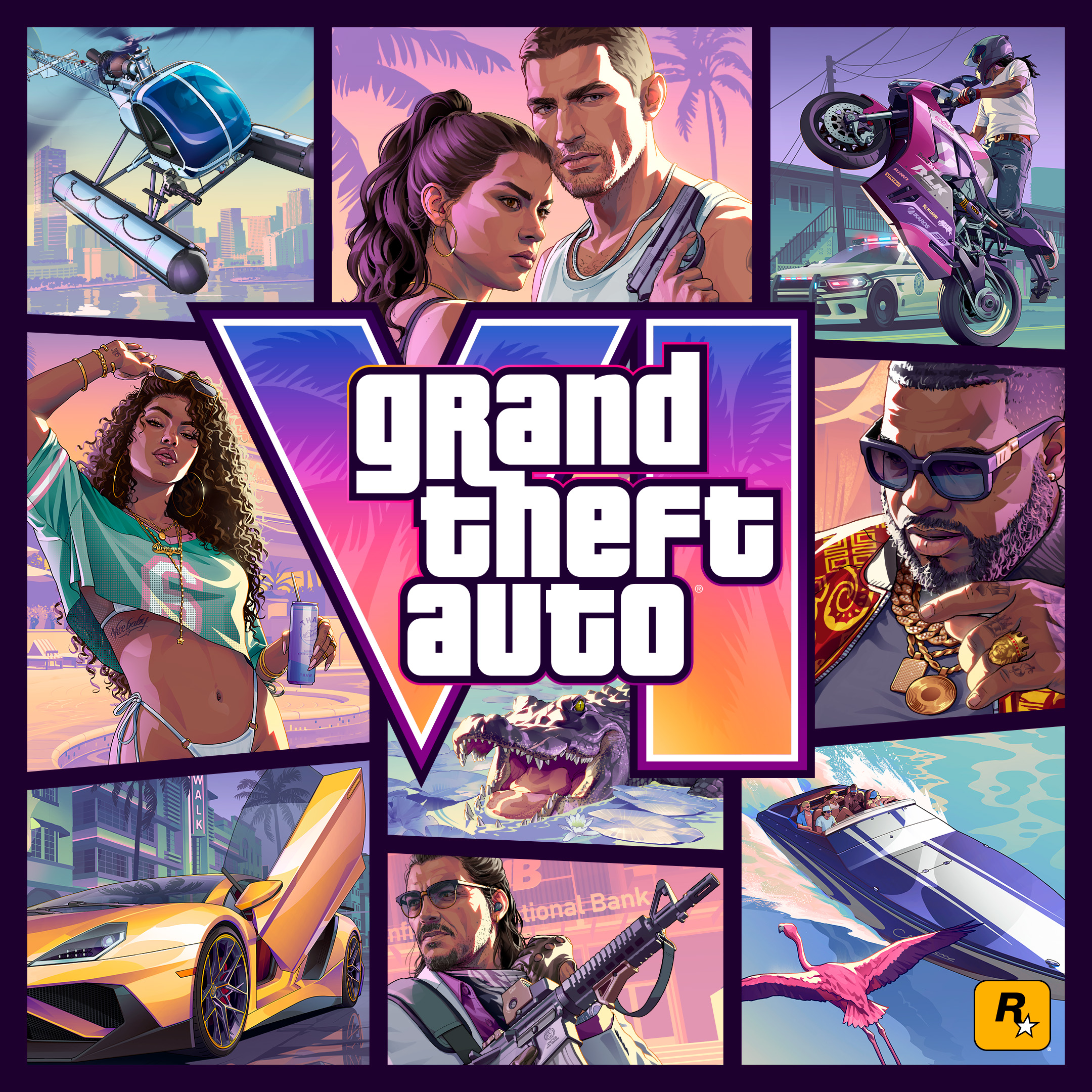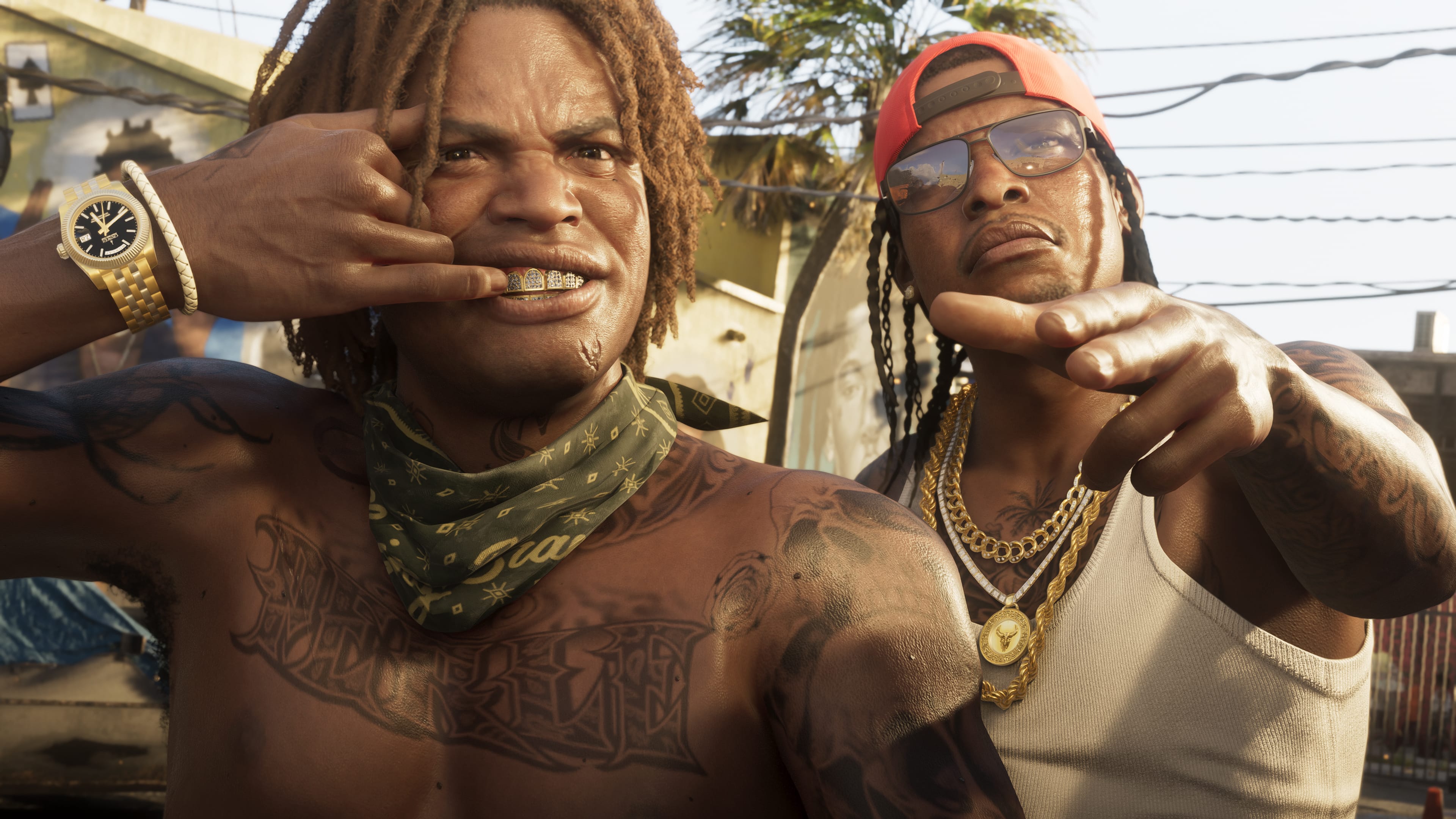
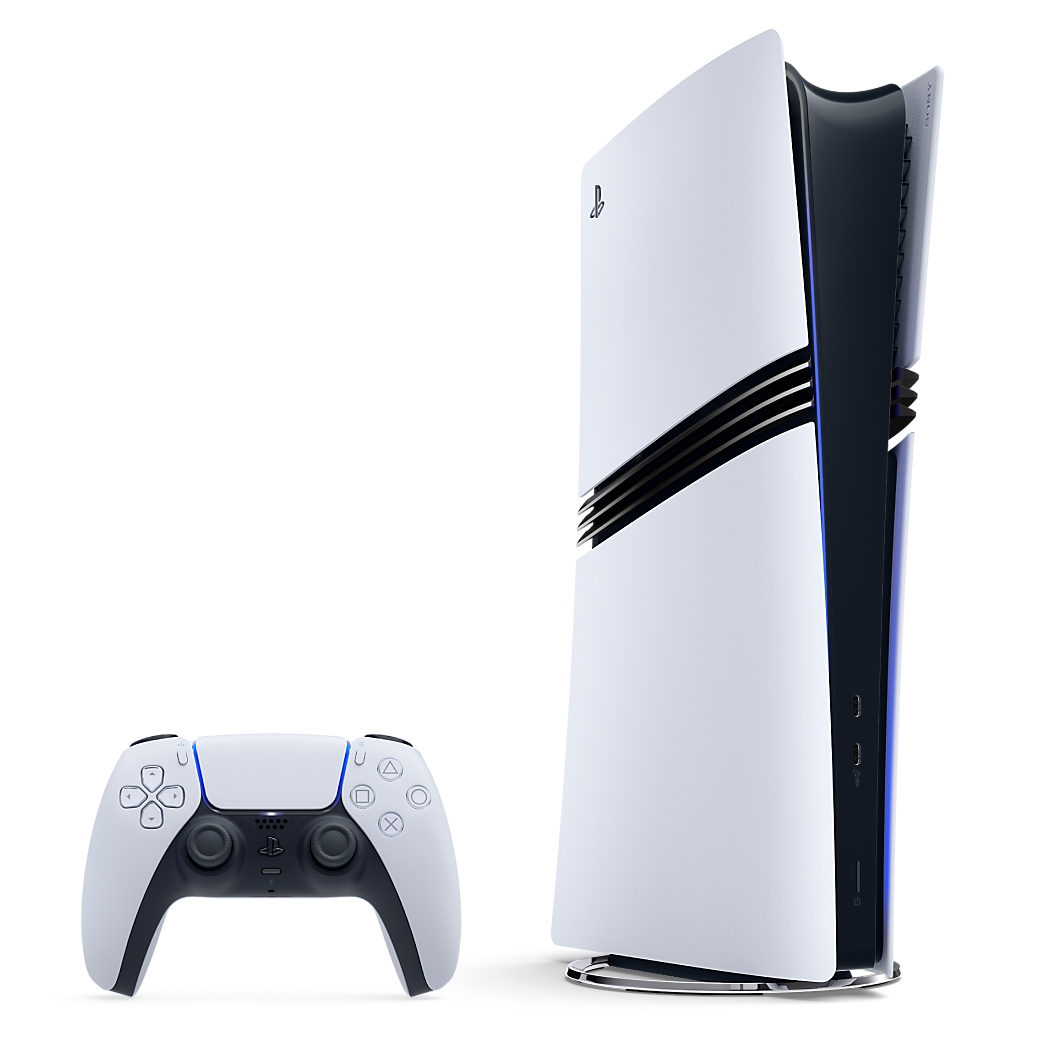
You can start downloading GTA 6. Rockstar opened pre-loading on November 10 for everyone who pre-ordered the game digitally on PS5 or Xbox Series X|S.
Players who bought the code-in-box version can also redeem their code and start pre-loading as soon as it arrives. The game stays locked until launch on November 19.
Clear some space
According to Rockstar's support page, the game needs up to 212 GB of free space, depending on the console. On PS5, pre-loading began at midnight local time on November 10. On Xbox, it began at midnight GMT on November 10, or 9pm on November 9 in Brasília (UTC−3).
For the download to happen on its own, Rockstar advises turning on automatic downloads or updates and leaving the console on or in rest mode.
What is different on PS5 Pro
In the same announcement, Rockstar detailed what PS5 Pro adds. The console uses PSSR, Sony's technology for sharper images, and will feature ray-traced shadows, a technique that makes light and shadow look more realistic. That feature is exclusive to PS5 Pro.
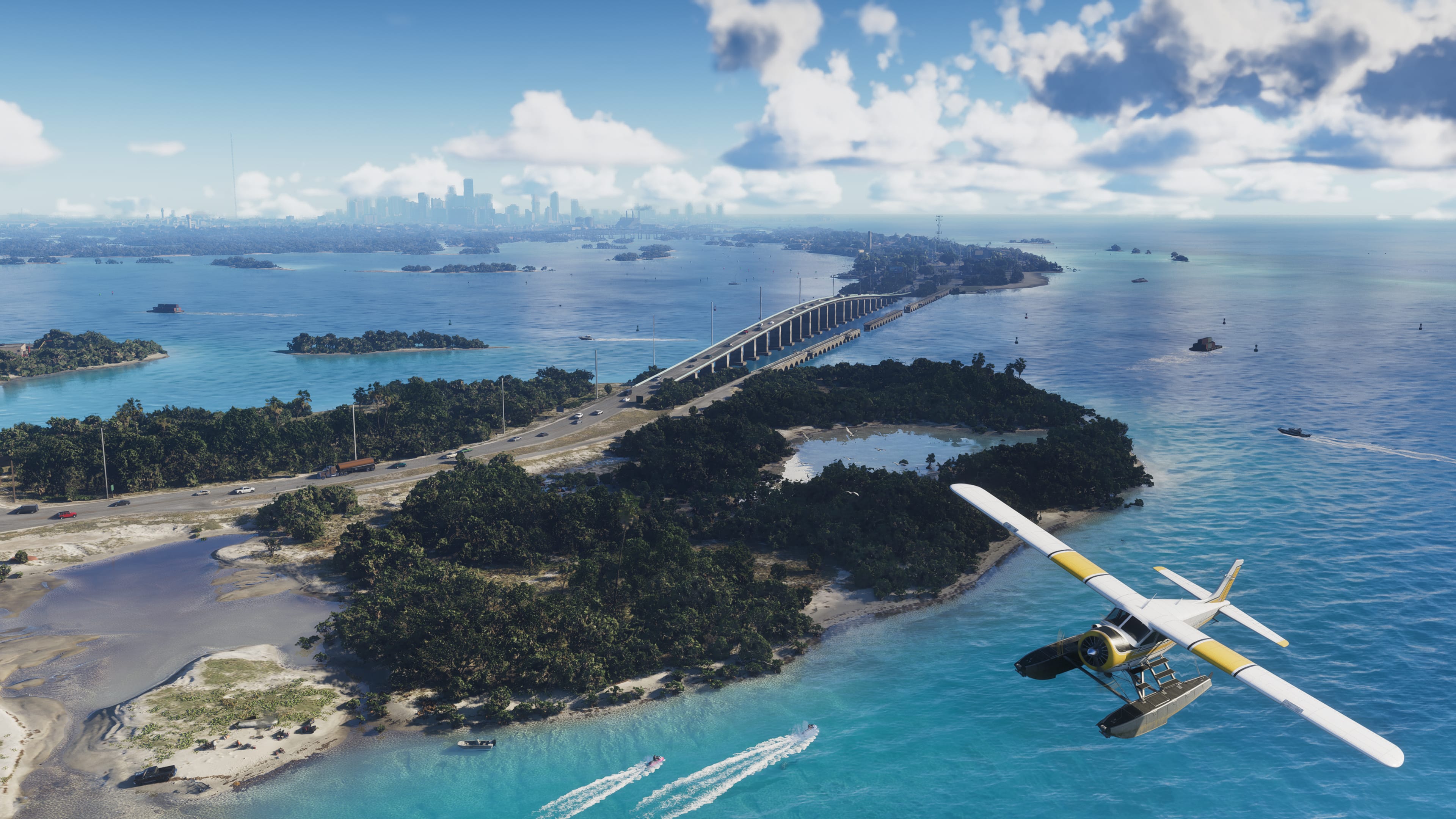
Rockstar confirmed again that the game targets 30 FPS on consoles. According to the company, that choice lets it keep the level of detail and the crowds on the streets of Leonida.
Haptics, audio and Remote Play
On PS5, the DualSense controller will have detailed haptic feedback throughout the game, adjustable in the accessibility settings. Rockstar also promises improved 3D audio with Tempest 3D Audio support and faster load times.
The game will also support Remote Play on PlayStation and Xbox, which lets you play on another device away from the console. To mark the occasion, Rockstar released a video featuring "Blood in Your Eyes" by Tove Lo, from GTA VI: The Album.
A checklist before launch
On PS5, open Settings > Storage > Console Storage > Games and Apps to remove installations you no longer use. Keep your saved data. PS5 games stored on USB must be moved back to internal storage or a compatible M.2 SSD to run.
Under System > Power Saving > Features Available in Rest Mode, enable Stay Connected to the Internet. Under Saved Data and Game/App Settings > Automatic Updates, enable downloads and installation in rest mode.
On Xbox, check Settings > System > Storage devices. In My games & apps, select an unused game and open its menu to uninstall it. Under System > Updates, enable the option to keep games and apps up to date.
Before leaving your console, check the queue to make sure the download has started. Check again before launch to confirm it has finished and see whether updates need approval. Our launch-time table also includes Brasília time for comparison.