A stalled PS5 download may involve connectivity, storage, licensing or service availability. These steps follow official PlayStation support and help identify the cause without assuming every error comes from GTA 6.
1. Check PlayStation service status
Visit the official status page. If the required service has an alert, wait for recovery before retrying. Check the current status when the problem occurs.
2. Confirm the purchasing account
Sign into the account that bought or redeemed the game and check transaction history. Open Game Library > Your Collection and select the title to download. For a padlock, confirm ownership and follow the account settings’ restore-licenses option.
3. Check required storage
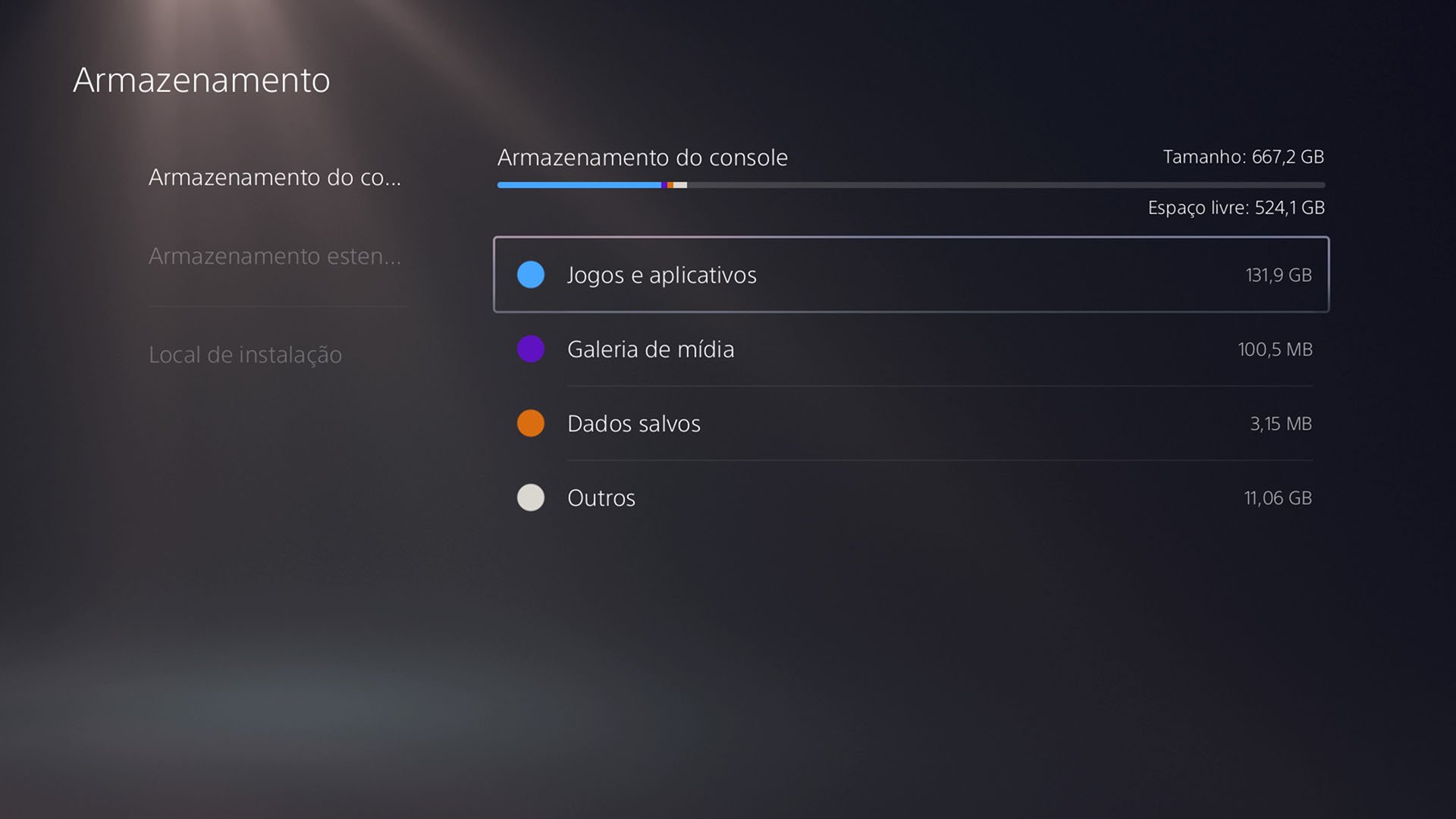
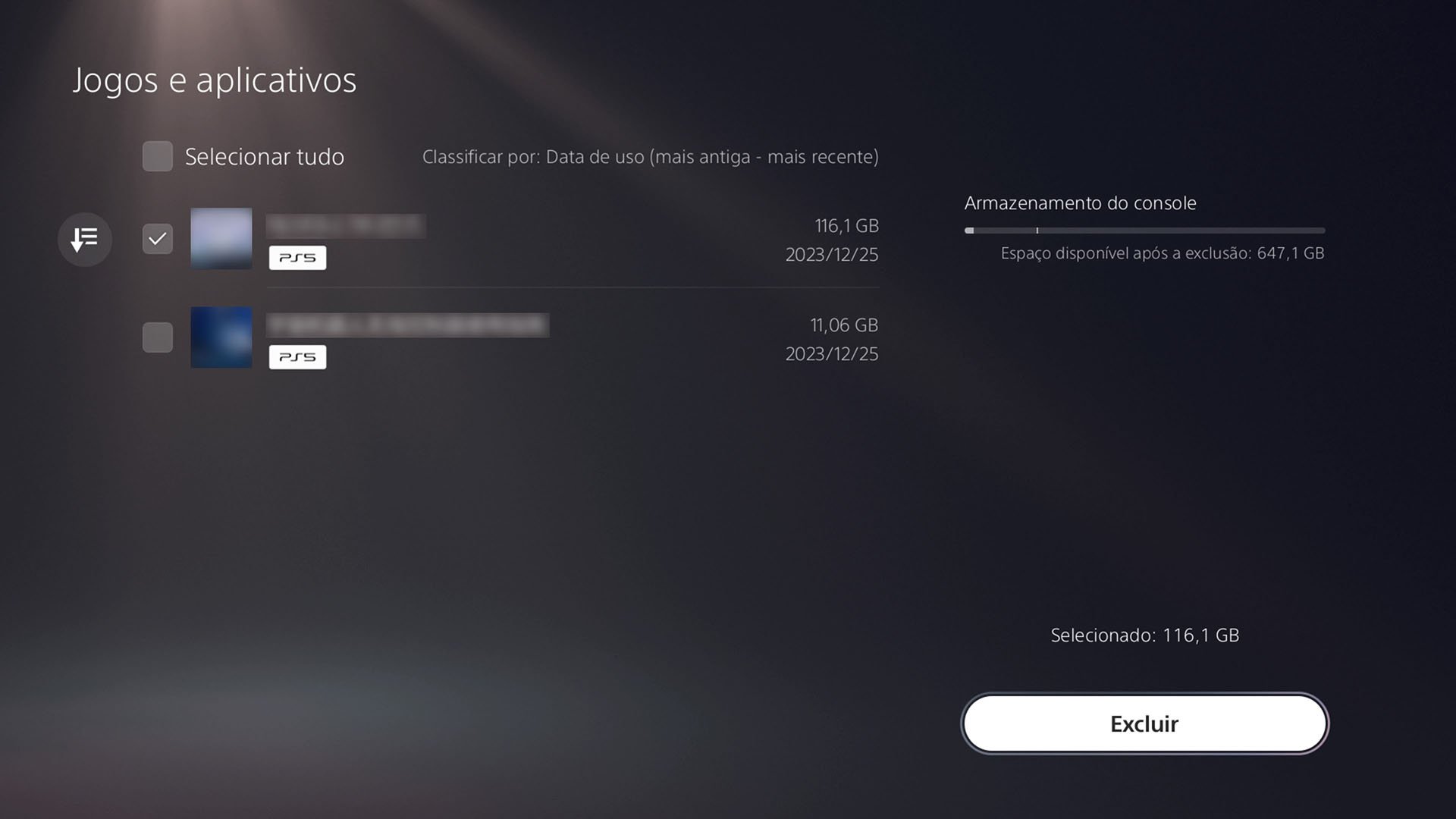
Open Settings > Storage and compare free space with the product’s installation requirement. Under Games and Apps, choose unused games to remove or move. Do not use the saved-data section to free installation space.
4. Pause and resume
Open Downloads/Uploads in Control Center, select the transfer, pause it and resume. If it still will not start, support recommends canceling and deleting that queued transfer, then downloading again from the library. This may require downloading previously transferred data again.
5. Test your connection and update
Open Settings > Network > Connection Status > Test Internet Connection. Also check Settings > System > System Software > System Software Update and Settings. Install an available update before retrying.
6. Record persistent errors
Write down the complete error code and message, the failing stage and attempt time for PlayStation support. A game already installed that crashes during a mission needs a runtime-crash investigation rather than download troubleshooting.